
Summary
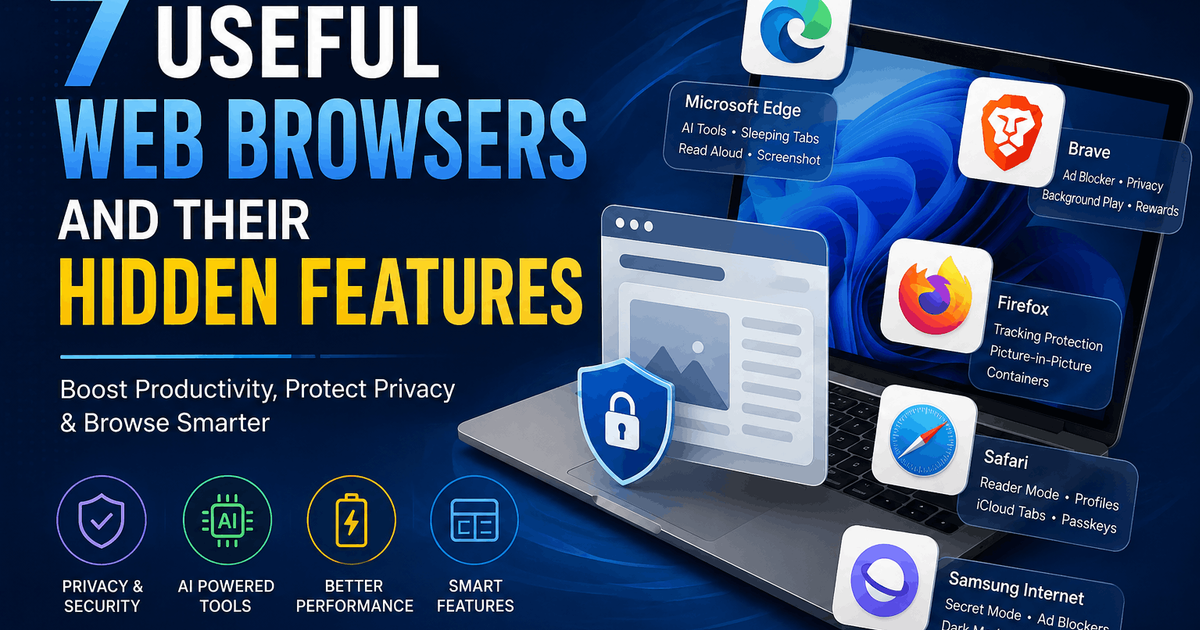
Modern web browsers offer far more than basic internet access. Microsoft Edge provides AI-powered assistance, Sleeping Tabs, screenshots, Split Screen, and Read Aloud for productivity. Brave focuses on privacy with built-in ad and tracker blocking, background playback, AI tools, and optional rewards. Firefox stands out with Enhanced Tracking Protection, Picture-in-Picture, and Containers for managing multiple accounts. Safari is ideal for Apple users with Reader Mode, Profiles, iCloud Tabs, and Passkeys, while Samsung Internet offers Secret Mode, anti-tracking, dark mode, and content-blocking support. Choosing the right browser depends on your priorities, whether productivity, privacy, performance, security, ecosystem integration, or everyday convenience.
7 Useful Web Browsers and Their Hidden Features You Should Know
When most people think about web browsers, the first names that usually come to mind are Chrome, Edge, Firefox, Safari, or Brave. But a modern browser is no longer just a tool for opening websites.
Today's browsers can help you summarize long articles, block trackers, watch videos while working, organize your online activities, protect your privacy, and even use AI without leaving the webpage you're visiting.
The interesting part is that many of these features are already built into browsers that you may be using every day.
In this guide, we'll look at some of the most useful browsers available across Windows, Android, macOS, iPhone, and iPad—and, more importantly, the features that make each one worth trying.
- Microsoft Edge
- Brave Browser
- Mozilla Firefox
- Safari
- Samsung Internet
1. Microsoft Edge: More Than Just the Windows Browser
Microsoft Edge is often ignored because it comes pre-installed with Windows. However, dismissing Edge as "just the default Windows browser" means missing out on several powerful features.
Edge is available across Windows, macOS, Android, and iOS, making it a practical choice if you frequently switch between devices.
Copilot: AI Built Directly Into Your Browser
One of Edge's biggest advantages is its integration with Microsoft Copilot.
Instead of copying content from a webpage into a separate AI chatbot, you can use Copilot directly within Edge for tasks such as:
- Summarizing long webpages
- Summarizing videos and PDFs
- Explaining difficult topics
- Researching information
- Improving or rewriting text
- Comparing products while shopping
- Generating and editing images
Microsoft says Copilot in Edge can use the context of webpages, videos, PDFs, open tabs, and other browsing information when responding to relevant prompts.
For students, researchers, professionals, and people who spend a lot of time reading online, this can significantly reduce the amount of switching between applications.
Sleeping Tabs: Reduce Resource Usage
- If you are the kind of person who regularly has 20, 30, or even 50 browser tabs open, Edge's tab management features can be particularly useful.
- Sleeping Tabs are designed to put inactive tabs into a lower-resource state after they have not been used for a while. This can help reduce memory and processor usage, which may be especially useful on laptops.
Screenshot Webpages Without Another App
Edge also includes built-in screenshot functionality, allowing you to capture content from webpages without installing a separate screenshot application.
This is useful when researching, collecting references, saving information, or quickly sharing a portion of a webpage.
Split Screen and Read Aloud
- Edge also provides tools designed for people who multitask.
- Split Screen can allow two webpages to be viewed side by side, while Read Aloud can convert supported webpage content into spoken audio.
- That means you can, for example, listen to an article while doing another task instead of continuously reading from the screen.
- Best for: Windows users, students, researchers, professionals, and people who want AI integrated directly into their browsing workflow.
2. Brave: A Browser Built Around Privacy
If privacy and reducing online advertising are your priorities, Brave is one of the browsers worth considering.
Brave is designed around privacy-focused browsing and includes built-in protections rather than requiring users to install multiple extensions just to get basic tracking protection.
Built-In Ad and Tracker Blocking
- Brave blocks ads and trackers by default across websites.
- This can make webpages feel cleaner and can reduce the number of third-party scripts and trackers loading in the background.
- Brave also specifically advertises built-in blocking of YouTube ads and other common distractions.
- However, keep in mind that websites and services can change their technology over time, so the effectiveness of any ad-blocking system can vary.
Background Playback
- One particularly useful feature for mobile users is background playback.
- Depending on the platform and current Brave implementation, you can use Brave to play supported video or audio content while using other applications or with the screen locked. Brave currently lists background play with lock-screen controls among its YouTube features.
- This can be useful for podcasts, educational content, music, interviews, and long-form videos.
Brave Leo AI
- Brave also has its own AI assistant, Leo.
- While its capabilities and integrations differ from Microsoft's Copilot, it can still be useful for tasks such as summarization, answering questions, and working with information from webpages.
- This makes Brave particularly interesting for users who want privacy-focused browsing combined with AI tools.
Brave Rewards
- Another unusual feature is Brave Rewards.
- Brave allows users to voluntarily opt into its advertising ecosystem. Users who choose to see supported privacy-preserving ads can earn rewards through Brave's system.
- In other words, Brave takes an unusual approach: instead of automatically showing you advertising, it gives you control over whether you participate.
- Best for: Privacy-conscious users, people who dislike intrusive advertising, and users who want a cleaner browsing experience.
3. Mozilla Firefox: One of the Most Flexible Browsers
Mozilla Firefox has been around for decades, but it remains one of the most interesting alternatives to Chromium-based browsers.
Firefox puts a strong emphasis on privacy, customization, and user control.
Enhanced Tracking Protection
- Firefox's Enhanced Tracking Protection automatically blocks known trackers that attempt to monitor your online activity.
- Firefox also uses technologies such as Total Cookie Protection to isolate cookies and reduce cross-site tracking.
- For users who care about online privacy, this is one of Firefox's biggest strengths.
Picture-in-Picture Mode
Picture-in-Picture is another extremely useful feature. It allows supported videos to appear in a floating window while you continue using another application or browsing another webpage. Imagine watching an online lecture while taking notes, following a tutorial while coding, or watching a video while researching something else. The video can remain visible while you work.
Firefox Containers
Firefox Containers are one of the browser's most interesting features.
They allow you to separate different browsing activities into isolated containers.
For example, you could have:
- Work
- Personal
- Shopping
- Banking
- Social media
Each container can maintain separate cookies and login sessions.
This means you can potentially stay logged into different accounts on the same website without constantly logging out or opening separate private windows. Mozilla specifically describes Containers as a way to access sites with different accounts through isolated browsing environments.
For people who manage multiple accounts, this can be extremely convenient.
Best for: Privacy-focused users, developers, researchers, power users, and people who manage multiple accounts.
4. Safari: The Natural Choice for Apple Users
If you're using an iPhone, iPad, or Mac, Safari deserves more attention than it often gets.
Safari is deeply integrated into Apple's ecosystem and focuses heavily on performance, privacy, battery efficiency, and synchronization between Apple devices.
Reader Mode
Safari's Reader experience can remove much of the unnecessary clutter from supported webpages, making articles easier to read. This is especially useful for people who regularly read blogs, news articles, documentation, and long-form content.
Safari Profiles
Safari also supports Profiles, allowing you to separate browsing activities such as:
- Work
- Personal
- Shopping
- Entertainment
- Education
Each profile can have its own history, cookies, website data, extensions, Tab Groups, and favourites. Profiles can also sync across compatible Apple devices through iCloud.
iCloud Tabs
If you use multiple Apple devices, iCloud Tabs can be extremely convenient. You can start browsing something on your Mac and continue from your iPhone or iPad. This is one of those ecosystem features that becomes particularly useful once you start using multiple Apple devices.
Passkeys and iCloud Keychain
- Safari also integrates with Apple's password-management ecosystem.
- iCloud Keychain can store passwords and passkeys and make them available across your approved Apple devices.
- Passkeys are especially useful because they can reduce dependence on traditional passwords and provide stronger protection against phishing.
Best for: iPhone, iPad, and Mac users who want strong ecosystem integration, privacy, battery efficiency, and seamless synchronization.
5. Samsung Internet: Not Just for Samsung Phones
The name can be misleading. Samsung Internet is primarily designed for Android smartphones and tablets and isn't limited to Samsung Galaxy devices.
It offers a combination of privacy, customization, security, and multimedia features that make it worth trying even if you don't own a Samsung phone.
Secret Mode
- Samsung Internet's Secret Mode provides a private browsing environment and can be protected with authentication such as a password or biometric verification on supported devices.
- It keeps browsing information separate from normal browsing, making it useful when privacy matters.
Smart Anti-Tracking
- Samsung Internet also includes Smart Anti-Tracking features designed to reduce tracking by third parties.
- Samsung's current browser documentation also highlights privacy dashboards, secret mode, ad-blocking support, and anti-tracking protections.
Dark Mode and Reading Features
- For people who browse extensively at night, the browser also provides dark-mode functionality.
- Samsung Internet additionally offers tools such as video assistance and reading-related features, making it a useful option for multimedia-heavy browsing.
- One important distinction is worth mentioning: Samsung Internet supports content blockers, but ad-blocking on Android may require installing a compatible third-party content-blocking extension rather than being universally enabled out of the box.
Best for: Android users who want a feature-rich mobile browser with privacy tools and strong customization options.
Which Browser Should You Actually Use?
There isn't one browser that is perfect for everyone. The best choice depends on what you actually do online.
Browser Worth Trying
- AI-powered browsing and research - Microsoft Edge
- Privacy and built-in ad blocking- Brave
- Advanced privacy and customization - Firefox
- Apple ecosystem integration - Safari
- Android-focused browsing -Samsung Internet
- Multiple accounts and sessions - Firefox
- Cross-device Apple workflow - Safari
- Windows productivity - Edge
You also don't necessarily have to choose just one.
For example, a Windows user could use Edge for work, research, and Microsoft services, while using Brave or Firefox for privacy-focused browsing.
Similarly, an Apple user may prefer Safari as their primary browser while keeping Firefox or Brave installed for specific use cases.
An Important Warning About Free Streaming APKs
There's one more topic that deserves attention because it directly affects browser and online safety.
Many people search for free applications or websites that promise access to movies and TV shows without subscriptions. This is where you need to be particularly careful.
India's CyberDost initiative, operated by the Indian Cybercrime Coordination Centre (I4C) under the Ministry of Home Affairs, has warned users about fake streaming applications circulated using names such as NetMirror.
The warning says that cybercriminals may use fake streaming apps to compromise devices, personal information, and login credentials. CyberDost recommends checking app permissions, avoiding APK links and third-party websites, and installing applications only from trusted app stores.
So if you already have an APK installed that you downloaded from an unknown source, don't simply assume that it is safe because the application appears to work normally.
What should you do?
If you installed an unofficial streaming APK:
- Uninstall the application.
- Check its permissions before removing it if you need to document what it accessed.
- Run a security scan on your device.
- Check for unfamiliar applications or unusual accessibility permissions.
- Change important passwords if you suspect your credentials may have been exposed.
- Avoid downloading replacement APKs from random websites.
- Use legitimate streaming services and official app stores whenever possible.
If you experience financial cyber fraud in India, CyberDost advises users to report it through the appropriate official channels, including the national cybercrime reporting system and the 1930 cyber-fraud helpline.
The important lesson is simple:
A free movie or TV show isn't worth compromising your personal data, passwords, or device.
Final Thoughts
Web browsers have evolved far beyond simply opening websites.
Microsoft Edge has become a powerful productivity and AI-focused browser. Brave is particularly attractive for privacy-conscious users. Firefox offers excellent tracking protection and unique features such as Containers. Safari shines within Apple's ecosystem, while Samsung Internet provides Android users with a surprisingly capable alternative.
The best approach isn't necessarily to find one browser and use it for everything.
Instead, choose a browser based on your needs.
- For productivity: Edge
- For privacy: Brave or Firefox
- For Apple users: Safari
- For Android users: Samsung Internet
- For multiple accounts: Firefox Containers
And most importantly, don't treat browser security as an optional feature. Your browser is one of the primary gateways between your device and the internet, so choosing the right one—and using it safely—can make a meaningful difference.
What Browser Do You Use?
Now it's your turn.
Which browser do you use most often?
And which feature mentioned in this article surprised you the most? Let us know in the comments.
If you found this guide useful, share it with someone who might benefit from it—and check out SolviaTech youtube channel for more practical technology tips, useful software, privacy guides, and lesser-known features that can make your everyday digital life easier.
Share this article
Found this helpful? Share it with others!